When You Need to Merge PDFs — and Why It Comes Up So Often
Merging PDFs is one of the most frequently needed document tasks in any professional environment. A project report arrives as four separate chapter files. A client's signed contract comes back as three scanned pages. A portfolio is spread across six separate PDFs. In each case, the end goal is the same: one clean, ordered document that can be shared, filed, or submitted as a single file.
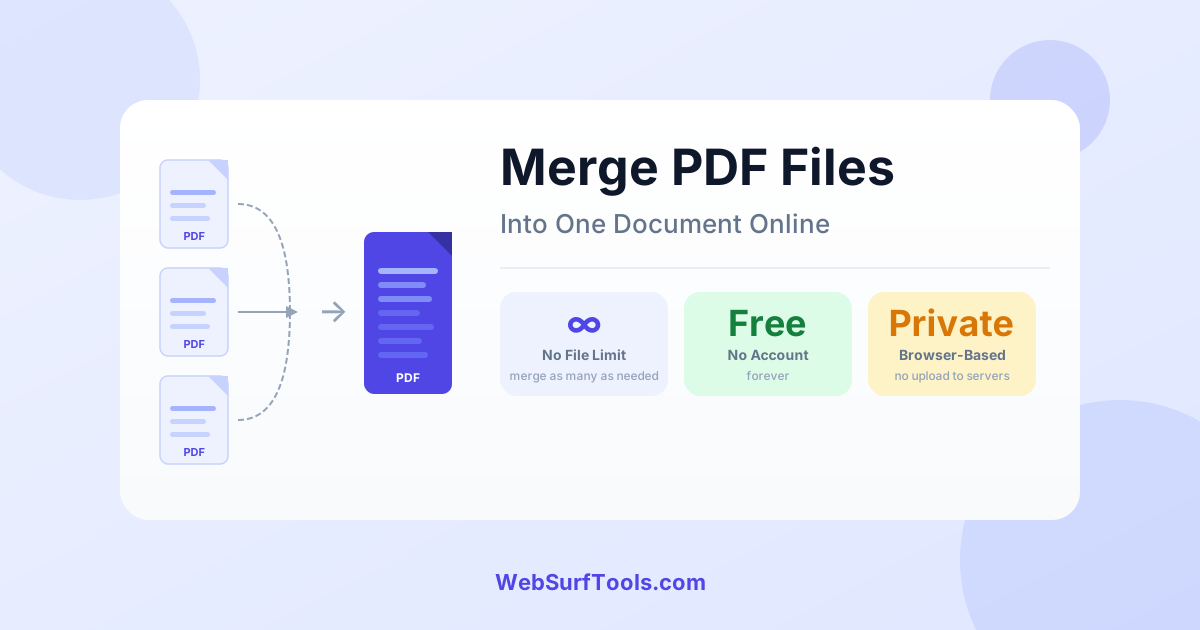
Until recently, doing this required either Adobe Acrobat Pro ($19.99/month) or a desktop application. In 2026, you can merge any number of PDFs for free in your browser — with no account, no file size limit, and no data sent to any server. Our Merge PDF tool runs the entire operation locally on your device.
Real-World Example: A 10-File Project Bundle
Here is a concrete example from a common use case. A project manager needed to assemble a client deliverable from 10 separate PDFs — a cover memo, six report sections, an appendix, a financial summary, and a signature page. Before discovering a browser-based tool, this took 20+ minutes in Acrobat with repeated save and re-open steps.
Using our Merge PDF tool:
- All 10 files uploaded: under 15 seconds
- Files reordered by dragging: 30 seconds
- Merged output generated: 8 seconds
- Total time from start to download: under 2 minutes
- Output file size: exactly the sum of the inputs — no quality loss, no added compression
How to Merge PDF Files for Free: Step by Step
Step 1: Open the Merge PDF tool
Go to the free Merge PDF tool. No account required, no software to install. Everything runs in your browser — your documents never leave your device.
Step 2: Upload your PDFs
Drag and drop all the PDF files you want to combine onto the upload area, or click to open your file browser and select multiple files at once. There is no limit on the number of files you can add in one session.
Step 3: Arrange the order
Once uploaded, all files appear as a list. Drag each file to its correct position in the final document. Take a moment here — the order you set is the order they appear in the merged PDF, and it is much faster to arrange now than to re-merge later.
Step 4: Merge and download
Click the Merge PDF button. The tool combines all files in the order you set and generates your output in seconds. Click Download to save the merged PDF to your device.
Tips for Better Merge Results
Compress large files before merging
If your source PDFs contain high-resolution images, the merged file can become very large. Run each through our Compress PDF tool before merging to keep the combined file to a manageable size. Compressing 5 image-heavy PDFs before merging can take a 120 MB bundle down to under 15 MB.
Extract only the pages you need first
If you only need specific pages from each source file — not the full document — use our Split PDF tool first to extract the relevant pages, then merge those extracted sections. This gives you complete control over which content ends up in the final document.
Fix page orientation before merging
If any source PDF has pages in the wrong orientation (sideways scans, for example), fix them with our Rotate PDF tool before merging. Correcting orientation after a merge requires re-merging from scratch.
Common Use Cases for Merging PDFs
- Legal and contracts — Combining a master agreement with its exhibits, schedules, and signature pages into one submission-ready document
- Finance and accounting — Bundling monthly invoices, receipts, or bank statements into a single quarterly or annual file for accounting or audits
- Academic submissions — Combining a thesis body, bibliography, and appendices into a single upload for university submission portals
- Portfolio assembly — Merging individual project PDFs into a single portfolio document for client presentations or job applications
- Real estate — Bundling property listing sheets, inspection reports, and disclosure documents into one client-facing pack
- Medical and HR records — Combining scanned forms and records into a single file for filing or submission — all done locally, so sensitive data never leaves your device
Merging PDFs vs. Splitting — When to Use Each
Merge and split are two sides of the same workflow. Use merging when you're assembling separate documents into a combined file. Use splitting when you need to extract specific pages or sections from a large document. Many workflows use both: split a large document to extract the relevant sections, then merge those sections together with other files into the final deliverable.
Both operations are available free at WebSurfTools: Merge PDF and Split PDF.
Free Merge vs. Adobe Acrobat Pro
Adobe Acrobat Pro costs $19.99 per month and limits its free tier to merging two files at a time. WebSurfTools Merge PDF is completely free, supports unlimited files in a single session, and processes everything locally in your browser — no subscription, no account, no file upload.
For standard document merging — which covers virtually all real-world use cases — there is no practical difference in output quality between a free browser tool and Acrobat Pro. The merged PDF is structurally identical.
Frequently Asked Questions
Is the Merge PDF tool completely free? Yes — free, no account, no file count limit. Merge as many PDFs as you need in a single session.
Is it safe to merge confidential documents online? All merging runs locally in your browser. Your files are never uploaded to any server — making it safe for legal contracts, financial records, medical documents, and any other sensitive content.
Will the merged PDF preserve bookmarks and internal links? Internal links and page formatting are preserved. Bookmarks from individual source PDFs may not carry over into the merged file depending on the structure of the original documents.
Can I merge password-protected PDFs? Protected PDFs need to be unlocked before they can be merged. Use our Unlock PDF tool first, then merge the unlocked files.
Is there a file size limit? No — because merging runs locally in your browser, there is no server-imposed size limit. Very large batches (10+ files totalling 500 MB+) may take longer depending on your device's RAM.
Can I merge PDFs on mobile? Yes — the tool is fully responsive and tested on iOS and Android browsers.
What if I need to re-order pages after merging? Use our Split PDF tool to extract the pages that are in the wrong position, then re-merge in the correct order. Alternatively, use the rotate or split tools to prepare each source file correctly before the initial merge.
Merge Your PDFs Now
Open the Merge PDF tool, drop in your files, arrange the order, and download your combined document in under a minute. No software, no account, no file uploaded to a server.
Once merged, use Compress PDF if the output file is larger than you need for email or a portal upload.