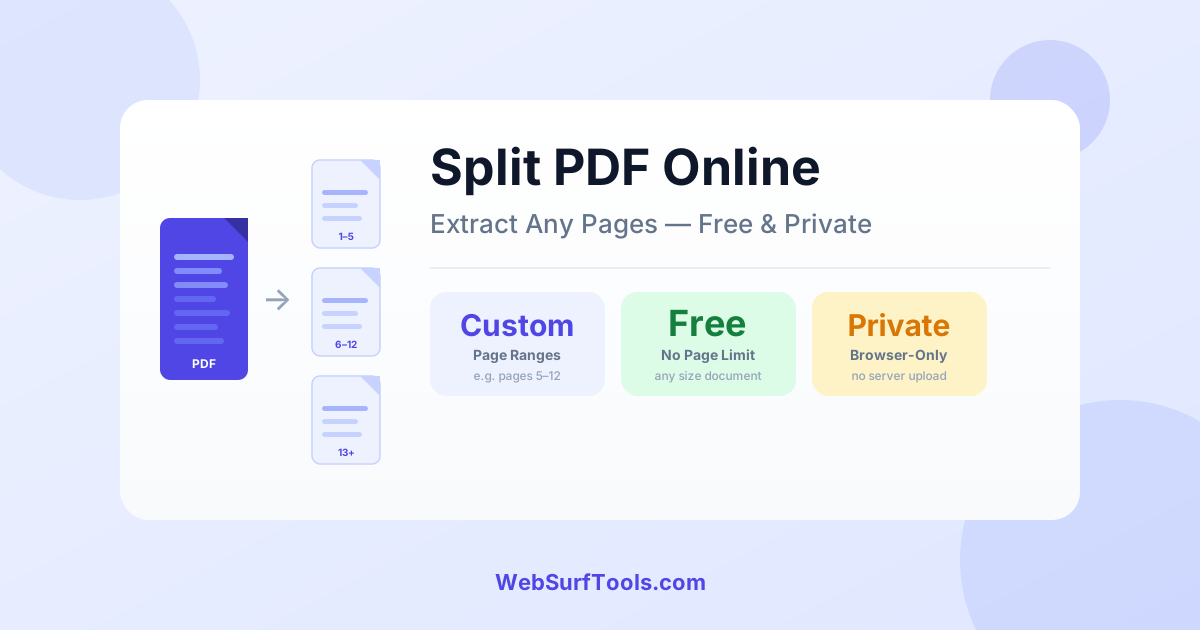
Why You Need to Split a PDF
PDF files are often received as large, composite documents — a 200-page compliance manual when you only need chapter 7, a 90-page case file when you need to share only the exhibit pages, or a scanned record bundle when one client's documents need to be separated from another's. Splitting PDFs is a daily task for lawyers, administrators, academics, and anyone who works with multi-part documents.
Until recently, splitting a PDF required Adobe Acrobat Pro ($19.99/month) or a desktop application. Our free Split PDF tool does the same job in your browser in seconds — no account, no installation, and no file sent to a server. Your documents stay on your device throughout.
Real-World Example: Extracting Exhibit Pages from a Case File
A paralegal needed to extract pages 67–84 from a 92-page PDF case file to share the exhibit section separately with a reviewing attorney. The rest of the document was confidential and should not be included.
Using our Split PDF tool:
- File uploaded: 4 seconds
- Page range entered (67–84): 5 seconds
- Extracted PDF generated: 3 seconds
- Total time: under 15 seconds
- Output: 18-page PDF containing only the requested exhibit pages
The original 92-page document remained unchanged on the device. Nothing was uploaded to any server.
How to Split a PDF for Free: Step by Step
Step 1: Open the Split PDF tool
Go to the free Split PDF tool. No account is required, nothing is installed. All processing happens locally in your browser.
Step 2: Upload your PDF
Drag and drop your PDF onto the upload area, or click to browse and select it. Files of any size and page count are supported — there is no server-side limit.
Step 3: Define your page ranges
This is where you specify exactly what to extract. You can enter:
- A continuous range — e.g. "5-12" to extract pages 5 through 12 as one output file
- Individual pages — e.g. "1, 3, 7" to extract specific non-consecutive pages
- Multiple ranges — e.g. "1-5, 10-15, 20" to produce several separate output files in one operation
- All pages individually — split every page into its own separate PDF file
Step 4: Download your split files
Click Split PDF. Each defined range downloads as its own PDF file. If you defined multiple ranges, you'll receive multiple files — one per range.
Common Use Cases
Extracting chapters from a report or manual
Large reports, technical manuals, and compliance documents are often distributed as single PDFs for convenience. If you need to share just one chapter, or work with one section at a time, splitting lets you extract exactly what you need. After splitting, use Compress PDF if the extracted section contains images and needs to be kept small for sharing.
Separating scanned multi-document bundles
Scanners often produce a single PDF from a stack of mixed documents. If a scanned bundle contains documents belonging to different people, projects, or filing categories, splitting lets you separate them cleanly. This is common in legal, HR, medical, and administrative workflows.
Sharing specific pages without exposing the full document
Some PDFs contain confidential pages mixed with shareable ones. A contract may have a price schedule you don't want shared with a subcontractor. A personnel file may have sections restricted to HR. Splitting lets you extract only the shareable pages into a separate file, with the sensitive content remaining in the original document on your device.
Reducing file size for portal uploads
If a document is too large for a portal's upload limit and compression alone isn't sufficient, splitting the document into smaller sections is an effective fallback. Extract the sections separately, upload them individually, and reference each part clearly in your submission notes. Combine this with Compress PDF for maximum size reduction.
Preparing pages for merging into another document
Splitting and merging often go together. Extract the relevant pages from multiple source documents using Split PDF, then combine exactly the pages you need into a new document using Merge PDF. This gives you full control over multi-source document assembly.
How to Tell If Your Split Will Work Cleanly
Page-based splitting works perfectly for all text-based PDFs and most image-containing PDFs. The only scenario that produces unexpected results is a PDF where one logical "page" spans multiple physical pages — this sometimes occurs with large-format technical drawings exported to A4. In these cases, ensure you include all physical pages that form a single logical page in your range.
To verify page numbers before splitting: open the PDF in your browser's built-in viewer (Chrome, Edge, Firefox, or Safari all work) and use the page number display to confirm exactly which pages contain the content you want to extract.
Free Split vs. Adobe Acrobat Pro
Adobe Acrobat Pro costs $19.99 per month and requires installation. Its split function offers slightly more granular options for very complex splitting scenarios involving bookmarks or file size targets. For standard page-range splitting — which covers the vast majority of real-world use cases — a free browser tool produces identical output to Acrobat, processes files locally for complete privacy, and requires no subscription or account.
Frequently Asked Questions
Is the Split PDF tool completely free? Yes — free, no account, no page limit. Split any PDF into as many sections as you need.
Is it safe to split confidential PDF files online? All processing runs locally in your browser. Your files are never sent to any server — making it safe for legal documents, medical records, financial statements, and any other sensitive content.
Can I extract a single page from a multi-page PDF? Yes — just enter a single page number (e.g. "7") to extract that page as a standalone PDF.
What is the maximum file size I can split? There is no server-imposed limit because processing is browser-based. Very large files (200+ pages, 100+ MB) may take a moment on slower devices.
Will splitting reduce the quality of the extracted pages? No — splitting is a structural operation. No content is re-rendered or recompressed. Extracted pages are identical in quality to the original.
Can I split a PDF on my phone? Yes — fully responsive, tested on iOS and Android. The extracted files download directly to your device.
Can I split and then merge the results? Yes — use Split PDF to extract the pages you need from multiple source documents, then use Merge PDF to combine them in any order. This is the standard workflow for multi-source document assembly.
Split Your PDF Now
Open the Split PDF tool, upload your PDF, enter the page ranges you need, and download the extracted sections in seconds. No account, no software, nothing uploaded to a server.
If you need to combine the split sections with other documents afterwards, our Merge PDF tool handles that in the same free, browser-based workflow.